
Not all leads are created equal. In sales, knowing which prospects deserve immediate attention can make the difference between hitting and missing your targets. Zoho CRM’s lead scoring feature enables you to assign points to leads based on specific demographic and behavioral criteria, ensuring your team prioritizes the highest-value opportunities first.
By prioritizing quality over quantity, you can increase close rates, improve sales efficiency, and shorten the sales cycle.
What Factors to Score in Zoho CRM?
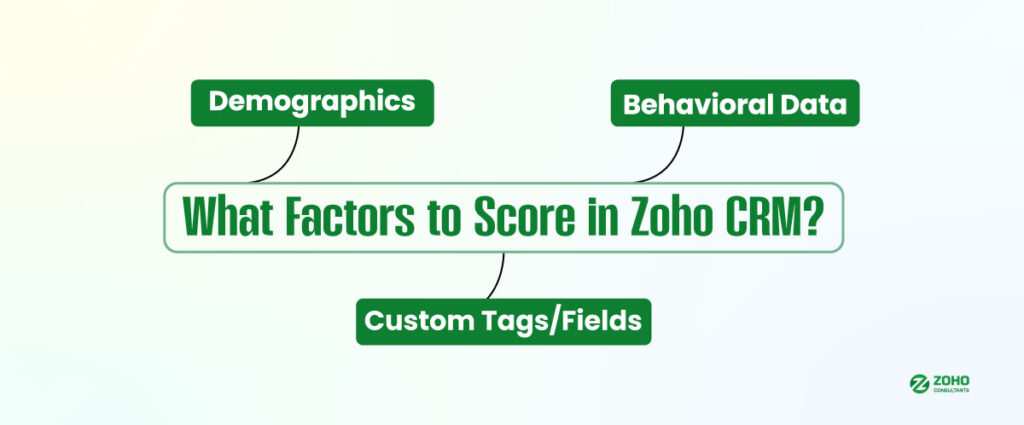
Lead scoring is most effective when you combine multiple data sources to create a comprehensive view of lead quality. Common scoring factors include:
Demographics
Company size, job title, industry, and location can indicate buying potential. For example, a C-level executive at a company with 500+ employees might score higher than an intern at a startup.

Behavioral Data
Actions such as opening marketing emails, visiting your website, downloading resources, or filling out forms show engagement and intent.
Custom Tags or Fields
Events like “Demo Requested,” “Attended Webinar,” or “Downloaded Pricing Guide” can signal strong interest.
How to Set Up Lead Scoring in Zoho CRM?
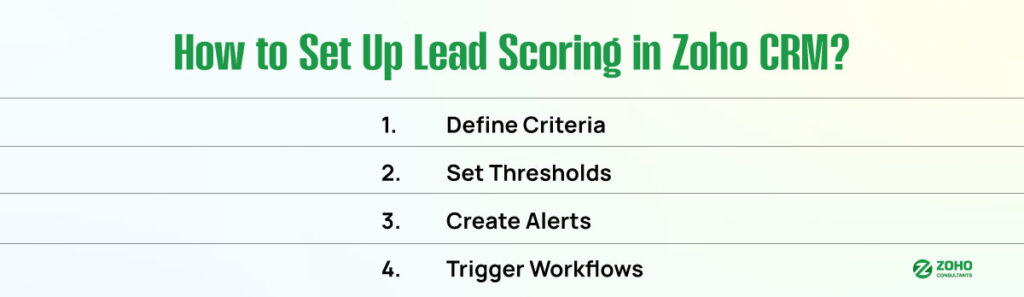
To start scoring leads, navigate to Automation > Scoring Rules in your Zoho CRM dashboard. From here:
- Define Your Criteria
Assign positive points for desirable actions (e.g., +10 for attending a webinar) and negative points for low engagement (e.g., -5 for no email opens in 30 days).
- Set Scoring Thresholds
Determine the point at which a lead becomes “sales-ready.” For example, leads with a score of 90/100 may be directed to a sales representative, while those with a score of 20/100 are sent into a nurture sequence.
- Create Alerts
Notify sales reps instantly when a lead reaches a key score threshold, allowing them to act quickly.
- Trigger Workflows
Automate next steps such as assigning leads to a rep, enrolling them in an email campaign, or updating their deal stage when scores change.
Turning Scores Into Action
A lead with a 90/100 score might trigger a “Book Demo” call-to-action for the sales team, while a 20/100 lead could be routed to a long-term email nurture campaign. This ensures high-potential leads are engaged at the right time, while low-scoring leads are still nurtured until they show buying signals.
Regularly review your scoring rules to ensure they reflect your latest sales data and customer behavior trends. Collaborating between marketing and sales teams helps refine the model, ensuring that only the best-fit leads reach your pipeline.